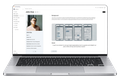
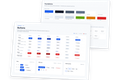
KPI Tracking Feature
Designing a solution for measuring and visualizing KPIs directly in journey maps, balancing simplicity for beginners and flexibility for advanced users.
At a glance

Problem Statement
Users want to clearly tie measurable outcomes like KPIs, NPS, and satisfaction scores to a journey map or even to specific stages within it. This presented a twofold challenge:
Quick and simple
Beginner users needed a quick, simple way to input KPIs without feeling overwhelmed.
Flexible and configurable
Advanced users needed flexibility and the ability to track multiple metrics, visualize progress, and configure details.
The core design challenge
The challenge was to create an experience that felt simple and approachable without sacrificing flexibility. By streamlining the creation flow and reducing the number of required inputs, I lowered the barrier to entry for new users while maintaining the functionality expected by advanced users.
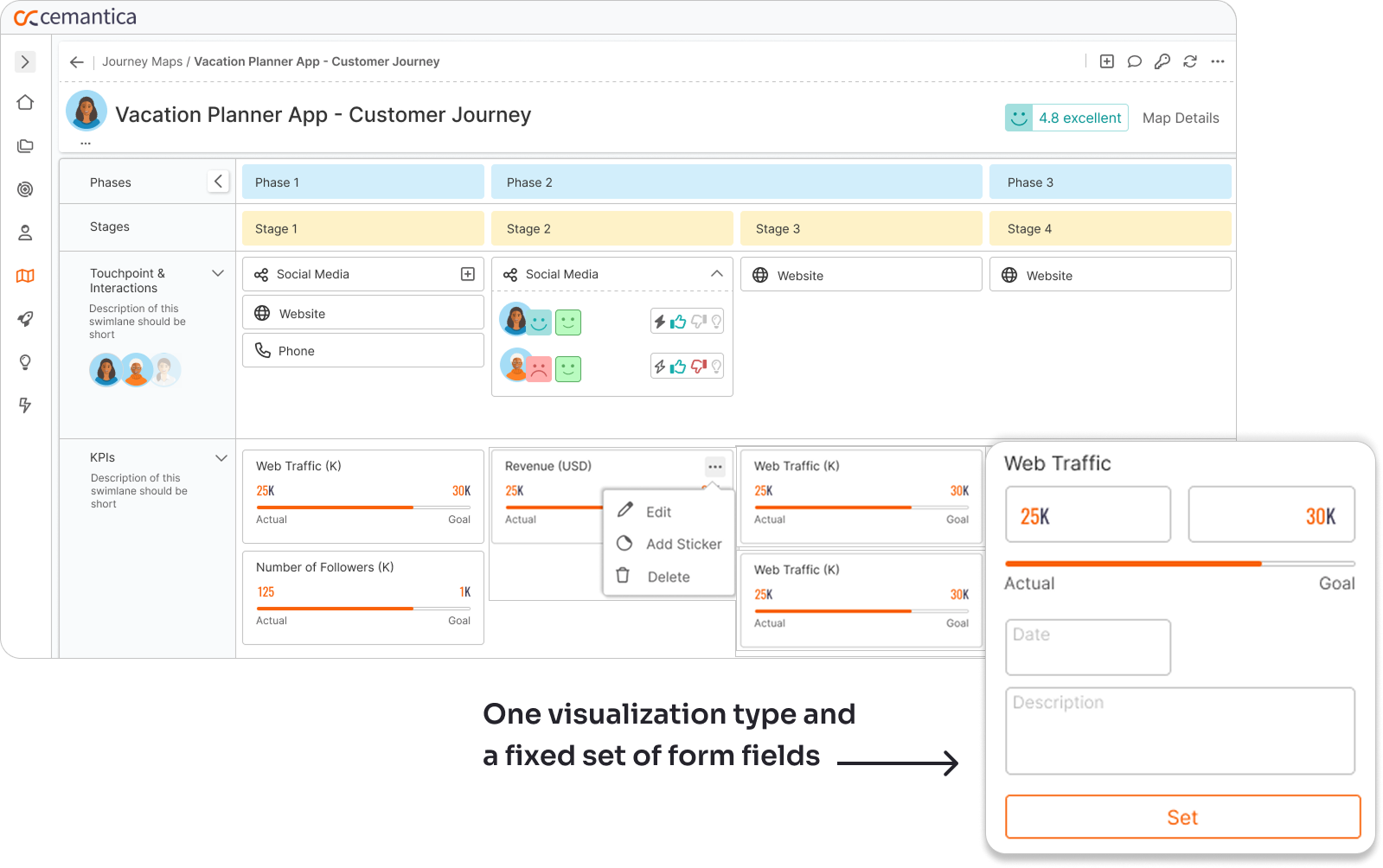
The KPI card before the redesign
A structured Continuous Discovery approach
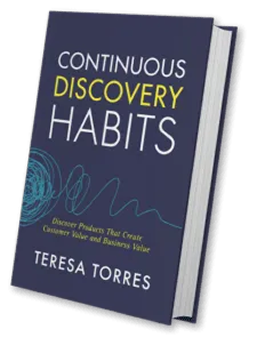
I used the Continuous Discovery approach developed by Teresa Torres, running lightweight interviews with active customers and translating recurring pain points into product opportunities and design decisions.
What we learned
Different users needed different levels of flexibility
Some users wanted to add one number quickly. Others needed targets, dates, financial impact, and data sources.
Keep the core workflow simple while supporting richer configuration.
Trends were difficult to track
A single current value and a target value were not enough for teams that needed to understand change over time.
Support multiple values and trend visualizations.
Manual data entry did not scale
Users wanted to connect metrics to external sources rather than update every value manually.
Support file upload and external data connectors.
Understanding what competitors do well
I reviewed two of our main competitors, TheyDo and Smaply, to understand how similar products present metrics inside journey maps.

TheyDo supported KPIs at the map level, expanding beyond the stage-level approach we already had.


Smaply offered different visualization types, including number cards, progress indicators, bar charts, and line charts.

From a fixed KPI structure to a flexible system
The previous version was built around a clear structure: a current value and a target. Customer interviews showed that metrics were not always structured this way, with some users needing a single value and others wanting to compare multiple values over time.
The redesign introduced a more flexible system built around three principles:
-
1
Support different metric structures
Users can start with a single value or add targets, dates, and multiple data points when needed.
-
2
Bring KPIs to the right level
KPIs can be added at both the stage level and map level, depending on what the metric represents.
-
3
Match the visualization to the data
The system supports number cards, line charts, bar charts, and progress visualizations.

KPI tracking connected directly to the journey map
The final experience connects KPI tracking directly to the journey map:
-
01 Add a KPI lane to the map.
-
02 Search and select an existing metric or create a new one.
-
03 Add values manually, upload a file, or connect a data source.
-
04 Choose the visualization that best represents the metric.
-
05 Track performance in the context of the relevant journey stage.

Delivered incrementally across three phases
The KPI Tracking feature was delivered incrementally, allowing us to validate the core experience before introducing more advanced capabilities.
Phase 1 › Core KPI Tracking
The initial release focused on the most common customer need: displaying a simple KPI number card with a current value and target. Alongside it, I redesigned the KPI form to make it more intuitive and flexible while keeping the workflow simple.

Phase 2 › Rich Data Visualization
The second release introduced file upload and multiple visualization types, allowing users to present metrics as number cards, progress indicators, bar charts, or line charts depending on the data.

Phase 3 › KPI Tracking in Context
The third release allowed users to add KPIs directly from the journey map and attach them at both the stage level and map level, making metrics easier to manage in context.

Next Step › Data Integrations
The next planned milestone is to connect KPIs to external data sources, enabling automatic updates from business systems instead of manual data entry.

80% of the concept shipped and in production
The redesign introduced a more flexible experience that customers are already using across their journey maps, while also helping showcase the platform's analytics capabilities during sales demos. Quantitative impact has not yet been measured, but early adoption has validated the direction of the redesign.
The remaining roadmap focuses on expanding the feature with external data connectors, enabling automatic synchronization from business systems and reducing manual data entry.
What I'm most proud of
Creating an experience that works for both beginner and advanced users.
Ensuring the final solution was driven by real user needs rather than assumptions.
More case studies